什麼是 Git?
Git 是一個分散式版本控制系統,讓開發者可以追蹤程式碼的每一次變更、與團隊協作,並在需要時回到任何歷史版本。無論是個人專案還是大型團隊開發,Git 都是現代軟體開發中不可或缺的工具。
為什麼要使用 Git?
- 版本追蹤:記錄每一次修改,隨時可以查看或回復到之前的版本
- 團隊協作:多人可以同時在不同的分支上工作,互不干擾
- 備份安全:程式碼儲存在遠端倉庫,不怕本機資料遺失
- 程式碼審查:透過 Pull Request 機制進行程式碼審查,提升程式碼品質
安裝與設定
安裝 Git
- macOS:使用 Homebrew 安裝
Loading...
- Ubuntu / Debian:
Loading...
- Windows:從 git-scm.com 下載安裝程式
設定您的資訊
初次使用 Git 時,需要設定使用者名稱和電子郵件,這些資訊會記錄在每一次的 commit 中。
- 設定資訊
Loading...
Loading...
- 查看目前設定
Loading...
- 移除資訊
Loading...
Loading...
Git 工作流程
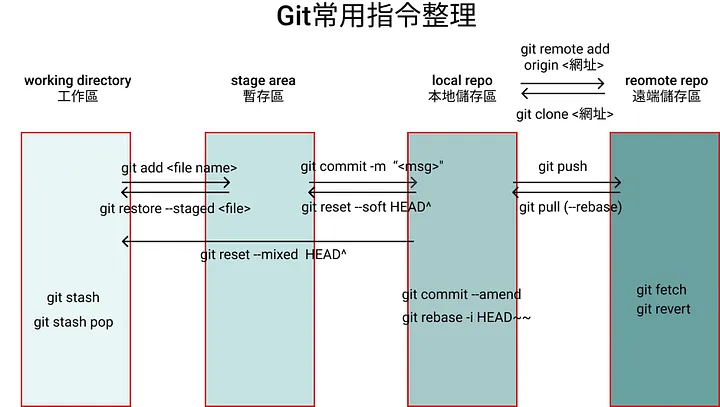
Git 的工作流程包含三個主要區域:
- 工作目錄 (Working Directory):你正在編輯的檔案所在的位置
- 暫存區 (Staging Area):準備好要提交的檔案
- 儲存庫 (Repository):已提交的歷史記錄
基本流程為:修改檔案 → 加入暫存區 → 提交到儲存庫
基本命令
初始化與複製
建立一個新的 Git 倉庫:
Loading...
從遠端複製一個現有的 Git 倉庫到本機:
- URL 方法:
Loading...
- SSH 方法:
Loading...
- 複製並重新命名資料夾:
Loading...
檢查狀態與差異
查看目前檔案狀態:
Loading...
查看檔案修改的差異:
Loading...
暫存與提交
將檔案加入暫存區(避免加入機密資訊,例如 API 金鑰、資料庫密碼等):
Loading...
提交已暫存的檔案:
Loading...
修改最後一次提交的訊息(尚未推送到遠端時使用):
Loading...
遠端倉庫操作
新增遠端倉庫:
Loading...
查看遠端倉庫資訊:
Loading...
將本機程式碼推送到遠端:
Loading...
從遠端拉取最新程式碼:
Loading...
設定遠端 upstream URL:
Loading...
分支操作
分支是 Git 最強大的功能之一,讓你可以在不影響主分支的情況下開發新功能或修復 bug。
基本分支命令
Loading...
合併分支
將其他分支的變更合併到目前分支:
Loading...
解決合併衝突
當兩個分支修改了同一個檔案的同一部分時,Git 無法自動合併,會產生衝突。衝突的檔案會包含以下標記:
<<<<<<< HEAD
你在目前分支的修改
=======
來自要合併分支的修改
>>>>>>> branch-name
解決步驟:
- 打開衝突的檔案
- 手動選擇要保留的內容,移除衝突標記
- 將解決後的檔案加入暫存區
- 提交合併結果
Loading...
查看歷史記錄
Loading...
查看特定檔案的修改歷史:
Loading...
查看某次提交的詳細內容:
Loading...
復原與回退
取消暫存區的檔案
Loading...
放棄工作目錄的修改
Loading...
回退到之前的提交
Loading...
注意:git reset --hard 會永久丟棄變更,使用前請確認。
Git Stash(暫存變更)
當你正在開發某個功能,但需要臨時切換到其他分支處理緊急問題時,可以使用 stash 暫時保存目前的變更。
Loading...
.gitignore 檔案
.gitignore 用來告訴 Git 哪些檔案或資料夾不需要納入版本控制。在專案根目錄建立 .gitignore 檔案:
# 相依套件
node_modules/

# 環境變數
.env
.env.local

# 建置產出
.next/
dist/
build/

# 系統檔案
.DS_Store
Thumbs.db

# IDE 設定
.vscode/
.idea/

# 日誌檔
*.log
常見工作流程範例
個人開發流程
Loading...
團隊協作流程
Loading...
實用小技巧
- 使用有意義的 commit 訊息,清楚描述做了什麼改變
- 經常提交,保持每次提交的範圍小而專注
- 推送前先
git pull 確保與遠端同步
- 善用
.gitignore 避免提交不必要的檔案
- 使用分支進行開發,避免直接在主分支上修改
- 善用
git stash 暫存未完成的工作
git config --global user.name "您的名字"
git config --global user.email "您的電郵"
git config --global --unset user.name
git config --global --unset user.email
git clone <https://url/owner/repo.git>
git clone <https://url/owner/repo.git> <新的資料夾名稱>
git diff                 # 查看未暫存的變更
git diff --staged        # 查看已暫存的變更
git diff <file>          # 查看特定檔案的變更
git add <file1> <file2>  # 加入指定檔案
git add .                # 加入所有變更的檔案
git commit --amend -m "修正後的訊息"
git remote add origin <https://url/owner/repo.git>
git push -u origin <branch>   # 首次推送,設定上游分支
git push                       # 後續推送
git pull                       # 拉取並合併
git fetch                      # 只拉取,不合併
git remote set-url origin <https://url/owner/repo.git>
git branch                     # 列出所有本機分支
git branch -a                  # 列出所有分支(包含遠端)
git branch <branch-name>       # 建立新分支
git checkout <branch-name>     # 切換到指定分支
git checkout -b <branch-name>  # 建立並切換到新分支
git branch -d <branch-name>    # 刪除已合併的分支
git branch -D <branch-name>    # 強制刪除分支
git checkout main              # 先切換到目標分支
git merge <branch-name>        # 合併指定分支
git add <resolved-file>
git commit -m "resolve merge conflict"
git log                        # 查看完整提交歷史
git log --oneline              # 簡潔模式,每筆提交只顯示一行
git log --graph                # 以圖形方式顯示分支與合併歷史
git log --oneline --graph      # 簡潔圖形模式
git log -n 5                   # 只顯示最近 5 筆提交
git log --author="名字"         # 查看特定作者的提交
git restore --staged <file> # 將檔案從暫存區移除(保留修改)
git restore <file> # 放棄特定檔案的修改
git revert <commit-hash>       # 建立一個新提交來撤銷指定提交的變更(安全)
git reset --soft <commit-hash> # 回退到指定提交,保留變更在暫存區
git reset --hard <commit-hash> # 回退到指定提交,丟棄所有變更(危險)
git stash                      # 暫存目前的變更
git stash list                 # 查看所有暫存的變更
git stash pop                  # 恢復最近一次暫存的變更,並從 stash 列表中移除
git stash apply                # 恢復最近一次暫存的變更,但保留在 stash 列表中
git stash drop                 # 刪除最近一次暫存的變更
# 1. 建立新功能分支
git checkout -b feature/new-feature

# 2. 開發並提交
git add .
git commit -m "add new feature"

# 3. 切回主分支並合併
git checkout main
git merge feature/new-feature

# 4. 推送到遠端
git push origin main

# 5. 刪除功能分支
git branch -d feature/new-feature
# 1. 從遠端拉取最新程式碼
git pull origin main

# 2. 建立功能分支
git checkout -b feature/my-feature

# 3. 開發並提交
git add .
git commit -m "implement my feature"

# 4. 推送功能分支到遠端
git push -u origin feature/my-feature

# 5. 在 GitHub / GitLab 上建立 Pull Request 進行程式碼審查

# 6. 審查通過後合併到主分支