What is Git?
Git is a distributed version control system that allows developers to track every change in their code, collaborate with teams, and revert to any previous version when needed. Whether it is a personal project or a large team effort, Git is an indispensable tool in modern software development.
Why Use Git?
- Version Tracking: Records every modification, allowing you to view or revert to previous versions at any time
- Team Collaboration: Multiple people can work on different branches simultaneously without interfering with each other
- Backup Safety: Code is stored in remote repositories, protecting against local data loss
- Code Review: Pull Request mechanisms enable code reviews, improving code quality
Installation and Setup
Installing Git
- macOS: Install using Homebrew
Loading...
- Ubuntu / Debian:
Loading...
- Windows: Download the installer from git-scm.com
Setting Your Information
When using Git for the first time, you need to set your username and email. This information will be recorded in every commit.
- Set information
Loading...
Loading...
- View current settings
Loading...
- Remove information
Loading...
Loading...
Git Workflow
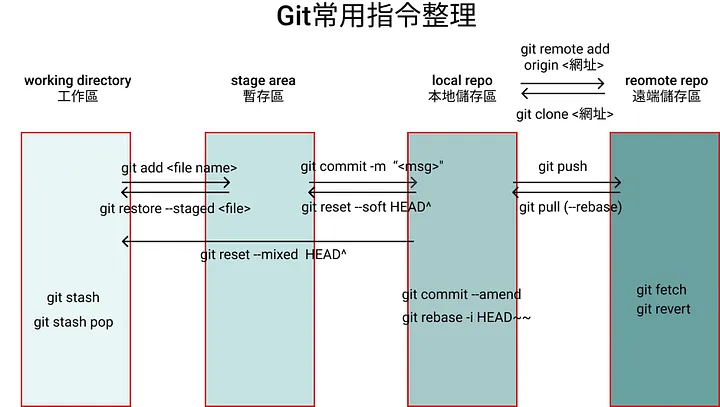
The Git workflow consists of three main areas:
- Working Directory: Where the files you are editing are located
- Staging Area: Files that are ready to be committed
- Repository: The committed history records
The basic flow is: Edit files → Add to staging area → Commit to repository
Basic Commands
Initialize and Clone
Create a new Git repository:
Loading...
Clone an existing Git repository from a remote server to your local machine:
- URL method:
Loading...
- SSH method:
Loading...
- Clone and rename the folder:
Loading...
Check Status and Differences
View the current file status:
Loading...
View file modification differences:
Loading...
Staging and Committing
Add files to the staging area (avoid adding confidential information like API keys, database passwords, etc.):
Loading...
Commit staged files:
Loading...
Amend the last commit message (use only when not yet pushed to remote):
Loading...
Remote Repository Operations
Add a remote repository:
Loading...
View remote repository information:
Loading...
Push local code to remote:
Loading...
Pull the latest code from remote:
Loading...
Set remote upstream URL:
Loading...
Branch Operations
Branching is one of Git's most powerful features, allowing you to develop new features or fix bugs without affecting the main branch.
Basic Branch Commands
Loading...
Merging Branches
Merge changes from another branch into the current branch:
Loading...
Resolving Merge Conflicts
When two branches modify the same part of the same file, Git cannot automatically merge them and a conflict occurs. Conflicting files will contain the following markers:
<<<<<<< HEAD
Your changes in the current branch
=======
Changes from the branch being merged
>>>>>>> branch-name
Resolution steps:
- Open the conflicting file
- Manually choose which content to keep and remove the conflict markers
- Add the resolved file to the staging area
- Commit the merge result
Loading...
Viewing History
Loading...
View the modification history of a specific file:
Loading...
View the details of a specific commit:
Loading...
Undoing and Reverting
Unstage Files
Loading...
Discard Working Directory Changes
Loading...
Revert to a Previous Commit
Loading...
Warning:
git reset --hardwill permanently discard changes. Make sure before using it.
Git Stash (Temporarily Save Changes)
When you are working on a feature but need to switch to another branch to handle an urgent issue, you can use stash to temporarily save your current changes.
Loading...
The .gitignore File
.gitignore tells Git which files or folders should not be tracked. Create a .gitignore file in your project root:
# Dependencies
node_modules/

# Environment variables
.env
.env.local

# Build output
.next/
dist/
build/

# System files
.DS_Store
Thumbs.db

# IDE settings
.vscode/
.idea/

# Log files
*.log
Common Workflow Examples
Personal Development Workflow
Loading...
Team Collaboration Workflow
Loading...
Useful Tips
- Use meaningful commit messages that clearly describe what was changed
- Commit frequently, keeping each commit small and focused
- Run
git pullbefore pushing to stay in sync with the remote - Use
.gitignoreto avoid committing unnecessary files - Use branches for development, avoid modifying the main branch directly
- Use
git stashto temporarily save unfinished work